


01Recommended
Standalone glasses and headsets
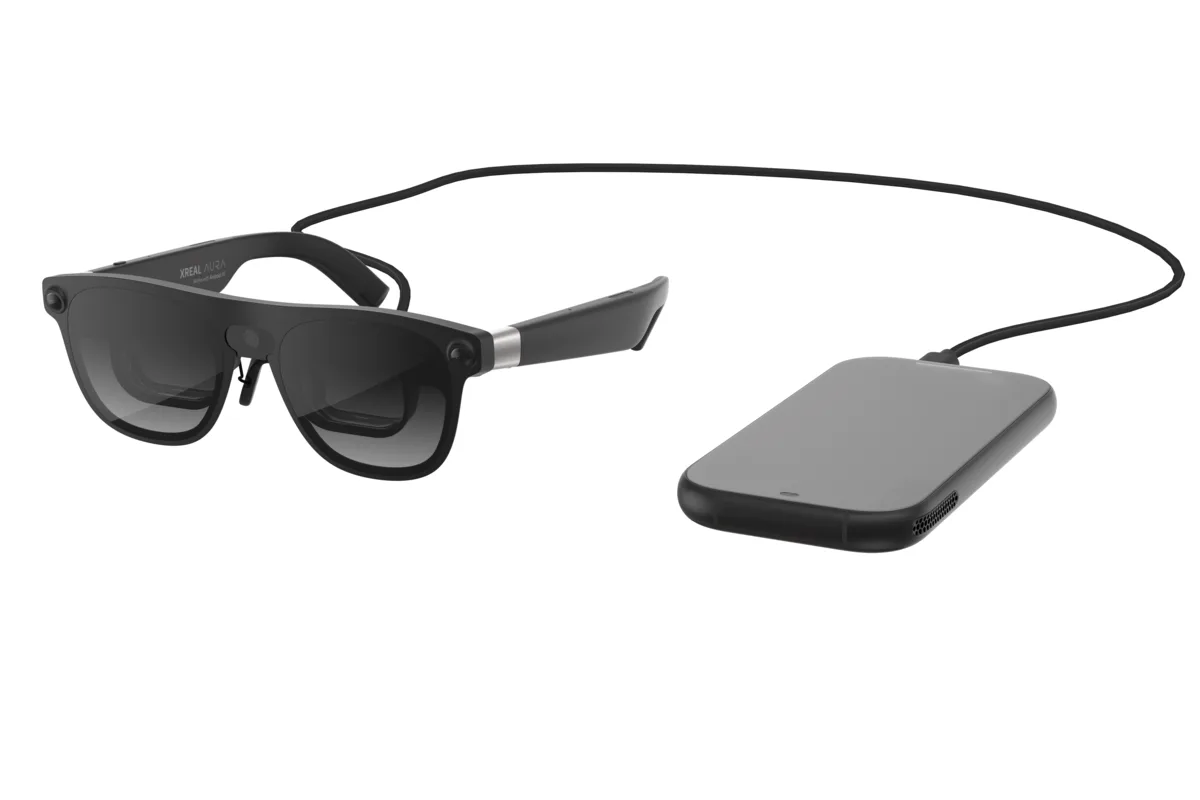
Run Captain SuperSight directly on XREAL AURA or Samsung Galaxy XR. Support for Meta VR Glasses is coming soon.
Explore setup 01: Standalone glasses and headsets
An accessible camera and display aid for people with low vision.
Unravel the mystery Explore three ways to use it
INVESTIGATION FILE
CASE No. 01SUBJECT IDENTIFICATION

Initial findings: Captain SuperSight is a customizable camera and display aid. His powers bring details closer, adjust light and color, and outline edges in the live view.
Physical controls and spoken feedback help you operate the app. Save useful places, adapt supported displays, and choose optional AI for more context about a scene.
Available powers depend on your device, permissions, camera source, and connected hardware.
★ THE ADVENTURE BEGINS
Get Captain SuperSight on your favorite platform.
MEET YOUR POWERS
Shape the live view, keep useful places nearby, or hear more about a scene. Pick a power below to see it in action.
Camera and display controls work independently of AI. Available controls depend on your device, camera source, permissions, and connected hardware.
Bring a label, sign, or detail closer in the live camera view. Step through magnification levels, or switch into Zoom mode to explore the enlarged image.
Toggle Zoom mode. On a trackpad, pinch to zoom and use two fingers to move around the view.
Make the camera picture brighter or darker. Adjust the exposure to suit the scene and the view that feels comfortable to you.
Focus Exposure, then tap to adjust its value. Hardware exposure support depends on the camera source.
Turn the camera light on when you need to illuminate something nearby. Turn it off again with the same control.
Focus Flash and tap either volume button, or tap the power on screen. Requires a camera with a supported light.
Share a location from another app, such as Google Maps, to see its approximate direction and distance in the camera view. Save useful places and keep favorites close at hand.
Focus Locations and tap to open the places wheel. Pick a destination to display its bearing and distance.
A bearing is not a route or a safety assessment. Keep using your established mobility aids.
Add a visible outline to edges in the camera image. Choose the color, line weight, opacity, and object scale that works for your view.
Focus Edge Outlines to switch them on or off. Fine-tune the appearance in settings.
Try Color Invert, High Contrast, or Yellow Duotone. Cycle through the filters to find the picture that is easiest for you to use.
Focus Filter and tap to move through the available options. Choose None to return to the original colors.
Adjust how the app treats highlights and shadows. Move through Mild, Balanced, Strong, and Max presets, or fine-tune the two settings separately.
Focus Recovery and tap to change the preset. The preview below uses Balanced (50%).
Request a description of what the camera is looking at, read aloud. Capture a scene when you want more context, then review the description alongside the captured frame.
Describe the scene directly from the camera. A supported on-device AI model must be installed first.
AI can be wrong, incomplete, or delayed. Verify important information before acting.
Type something you want the camera to watch for, such as “Find a red bicycle.” Sentinel checks frames at your chosen interval and announces a result when it finds a match.
Open Sentinel to enter a command or reuse one from history. Cancel monitoring whenever you like.
AI can be wrong, incomplete, or delayed. Verify important information before acting.
Turn the app’s spoken feedback on or off without leaving the camera view. Onboarding starts with the same choice, so you can set the sound from the beginning.
Focus Spoken Feedback and tap either volume button, or tap the power on screen. The wheel shows Muted or Unmuted.
TAKE CONTROL
Captain SuperSight is built around the volume buttons. Double-press or hold to move around the powers wheel, tap to activate or adjust, and triple-press for shortcuts. Spoken feedback tells you which power is focused, so you can keep your eyes on the scene.
Double-press or hold a volume button. On screen, touch and drag the wheel.
Tap a volume button to use the focused power. Or tap it directly on screen.
Triple-press Volume Up for Zoom mode. Triple-press Volume Down for a SuperSight description.
CHOOSE YOUR SETUP
Run Captain SuperSight directly on XREAL AURA or Samsung Galaxy XR. Support for Meta VR Glasses is coming soon.
Explore setup 01: Standalone glasses and headsetsConnect supported wired XR glasses to an Android phone with USB-C video output. The phone runs Captain SuperSight; the glasses display it.
Explore setup 02: Phone + glasses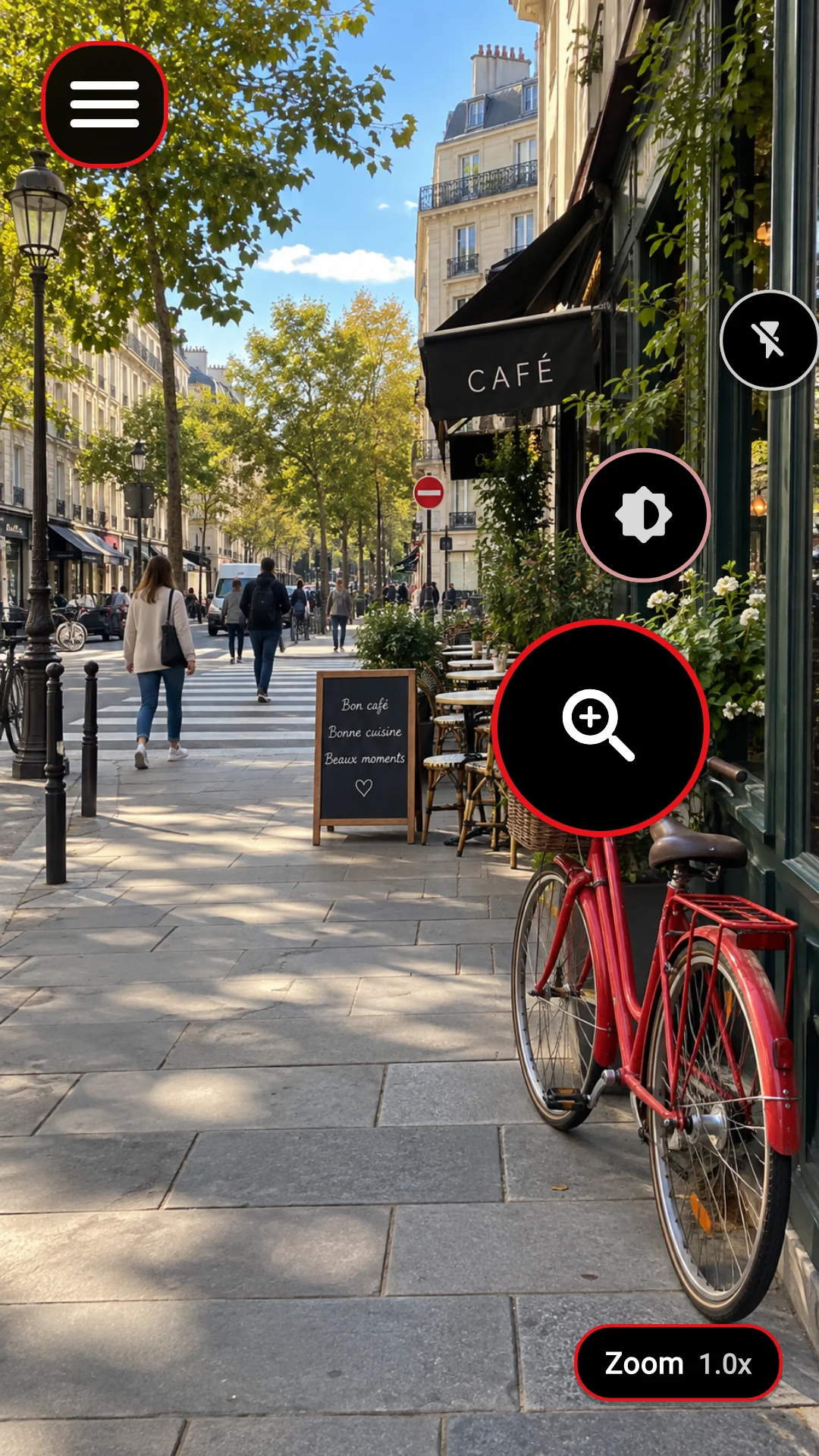
Use your Android phone or tablet’s camera and screen. iPhone and iPad support is coming soon.
Explore setup 03: Phone or tabletXREAL AURA runs Android XR on its wired pocket computer, not a phone. Open Captain SuperSight directly on XREAL AURA.
Powered by the Snapdragon® Reality Elite platform and XREAL X1S spatial co-processor.
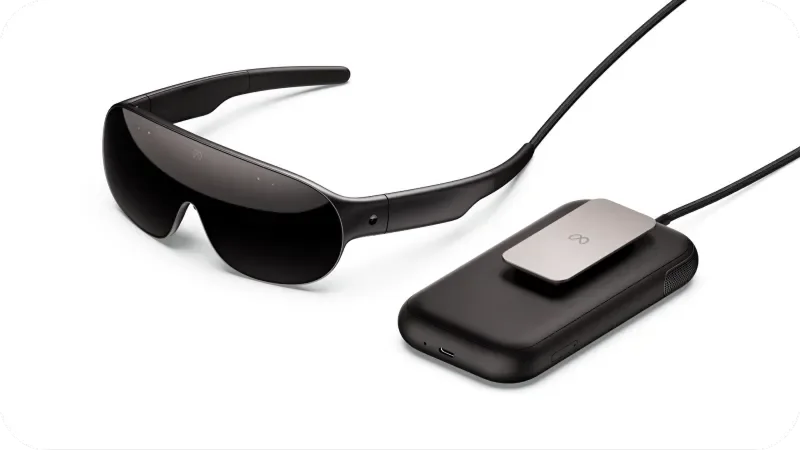
Learn about XREAL AURACaptain SuperSight is coming to Meta VR Glasses on Meta Horizon OS.
Learn about Meta VR Glasses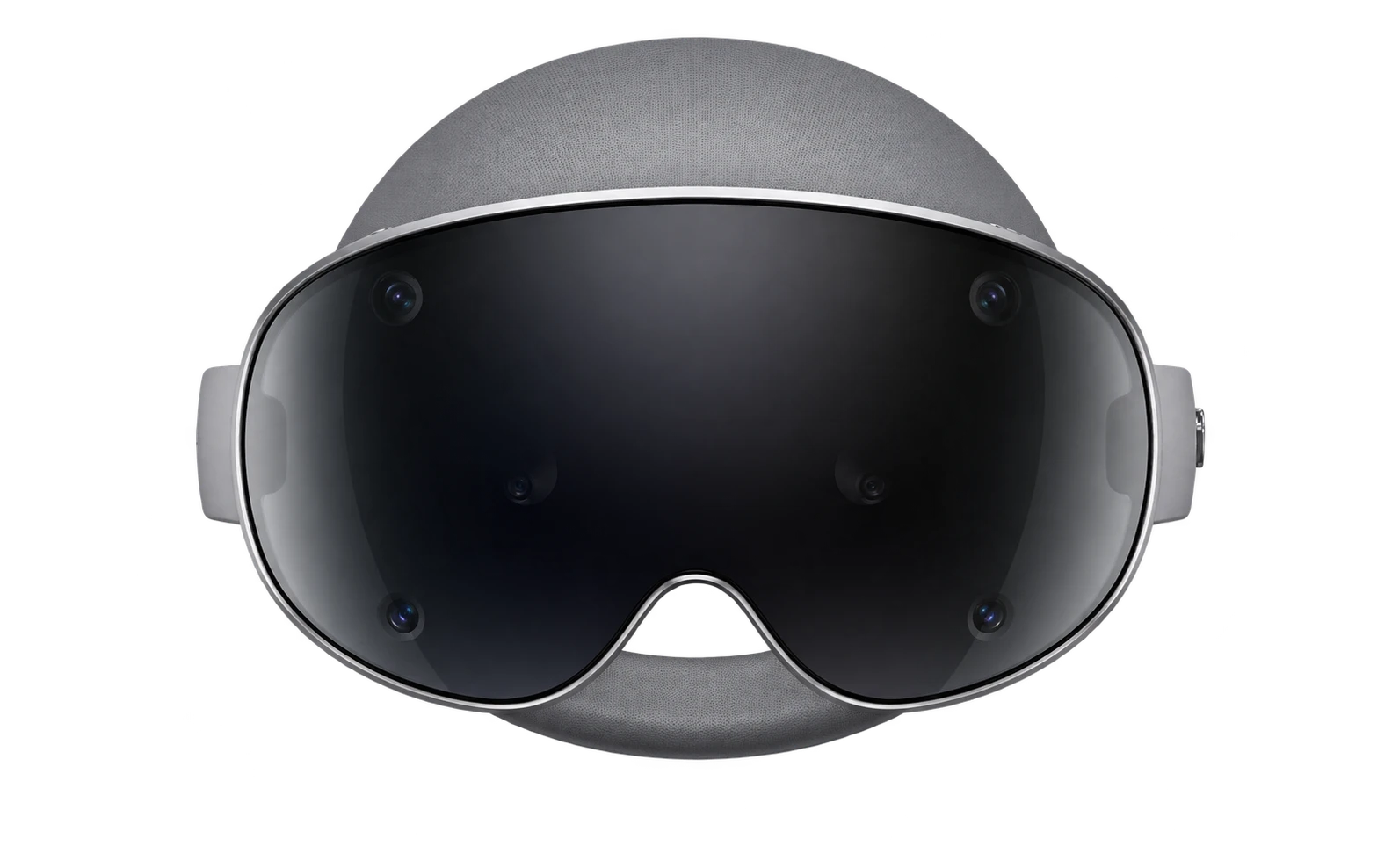
Use Captain SuperSight on Samsung Galaxy XR with supported controls, including Galaxy XR Controllers. Meta Quest support is coming soon.
Your Android phone must support video output over USB-C (DisplayPort Alt Mode). A USB-C port alone does not guarantee support.
For a starting point, browse this GSMArena phone list (opens in a new tab). This is not a verified compatibility list. Confirm USB-C video output for your exact phone model and compatibility with your glasses before buying.

Add an XREAL Eye camera to these glasses. The camera is sold separately.

Use the camera built into your glasses.
Connect your glasses to a compatible phone and use the phone’s camera or a compatible USB camera.
The camera view follows the camera’s position, which may differ from where you’re looking.
For the best experience, we recommend camera glasses
Check that your glasses work with your phone. You may need an adapter to connect glasses and a USB camera at the same time. Check before buying.
Product names and images belong to their respective owners. Navideck Labs is not affiliated with these hardware manufacturers.
Use Captain SuperSight on its own on your Android phone or tablet. View the live camera image on the screen, adjust it with the powers wheel, and use touch, volume buttons, or a supported controller.
XR glasses and USB-C display output are not required for this setup.
Coming soon
Captain SuperSight is coming to iPhone and iPad. Use your device’s built-in camera and screen.
Available powers, cameras, and controls vary by device. Read display safety.
EYES-FREE CONTROL
The on-screen wheel is always there for touch. For eyes-free control, use the volume buttons on your phone, glasses, or Bluetooth headset — or pair an external controller.

Touch and drag the powers wheel, then tap a power to activate or adjust it. The touch controls are always available.

Double-press or hold either volume button to move around the wheel. Tap to activate or adjust the focused power.

On supported XR glasses, the volume buttons on the glasses control the same powers wheel. Keep the phone in your pocket and your eyes on the scene.

Use the volume controls on a Bluetooth or wired headset, neckband, or any other headset with volume buttons. The phone can stay where it is.

Pair a game controller to move through and activate the powers with its buttons and sticks.
See controller supportPhone photo: Kelvinsong, cropped, CC BY 3.0. Glasses photo: Digital Trends. Headset remote photo: CNET. Controller images belong to their owners.
CONTROLLER SUPPORT
A wide variety of game controllers are supported, including options optimized for one-hand use. Keep one in your hand to move through the powers, activate the focused one, and make adjustments without reaching for the screen.

The pocket-sized Micro is light enough to hold in one hand. Pair it over Bluetooth with a supported phone and use its included wrist strap.

Pair a compatible Bluetooth media controller with your device and use its buttons and sticks to move through the powers, activate the focused one, and make adjustments.

Pair one Joy-Con over Bluetooth with a supported device. Its stick and buttons make a compact one-hand controller for the powers.

The compact Xbox Nano pairs over Bluetooth with a supported device. Its smaller body makes it a good fit for one-hand use.

Use Galaxy XR Controllers when running Captain SuperSight on a Samsung Galaxy XR headset. Their thumbsticks, triggers, and buttons control the powers inside XR.

Standard Bluetooth gamepads, regular Xbox, and DualSense controllers are supported, along with adaptive options such as the Xbox Adaptive Controller and PlayStation Access controller.
Controller support depends on your phone or XR device, operating system, connection, and app setup. Third-party product names, trademarks, and images belong to their owners; Navideck Labs is not affiliated with them. Check compatibility before buying.
All camera scenes, location data, and AI content shown here are illustrative. Screenshots use the app’s controls. Actual output depends on your device, surroundings, and model.
IMPORTANT SAFETY INFORMATION
Camera, sensor, location, display, and AI output may be incomplete, incorrect, delayed, or unavailable. Keep using your established mobility aids, mobility training, trusted assistance, and your own judgment. Never rely on Captain SuperSight to decide whether a route or crossing is safe. Captain SuperSight is an accessibility aid, not a medical device or an emergency service, and does not provide medical advice.
Read safety and limitationsAfter your trial, choose a monthly subscription or a one-time purchase for lifetime access.
per month
one-time payment
See current prices at checkout.
Captain SuperSight is a low vision app that makes the live camera view easier to see. You can zoom in, increase contrast, adjust brightness, and outline edges. On compatible devices, SuperSight can describe what the camera sees and read the description aloud.
Captain SuperSight is an accessibility app. Its superhero-themed “powers” are tools such as zoom, high-contrast filters, and spoken scene descriptions. A supported game controller is an optional way to operate the app.
Captain SuperSight is designed primarily for people with low vision who benefit from an adjustable camera view. You can magnify small print on a label, use a high-contrast filter to make a sign easier to read, or outline the edges of an object to make its shape stand out.
People who are totally blind can use spoken controls and, on compatible devices, request an AI scene description. Visual tools such as zoom and contrast require usable vision. AI descriptions can miss details or be wrong. Keep using your usual mobility aids and read the safety guidance before using the app.
Yes. Captain SuperSight can use your Android phone or tablet’s built-in camera and screen. The basic camera tools require Android 9 or later. Optional AI features require Android 11 or later and compatible hardware. Glasses, a headset, and a controller are optional.
Captain SuperSight for iPhone and iPad is coming soon.
Captain SuperSight runs directly on XREAL AURA and Samsung Galaxy XR. With a compatible Android phone, you can use XREAL One, XREAL 1S, XREAL One Pro, or ROG XREAL R1 with the separately sold XREAL Eye camera. VITURE Luma Pro, VITURE Luma Cyber, VITURE Luma Ultra, and VITURE Beast can use their built-in cameras. Check the wired glasses compatibility list before buying hardware.
Support for Meta VR Glasses is coming soon.
See Monthly and Lifetime pricing to keep using Captain SuperSight after your trial.
Connect compatible XR glasses to an Android phone that supports USB-C video output, also called DisplayPort Alt Mode. Check that your exact phone model supports video output before buying glasses. The phone runs Captain SuperSight, and the glasses show the camera view. You can use a compatible glasses camera, the phone’s camera, or a supported USB camera.
Captain SuperSight supports TalkBack on Android. You can also use physical volume buttons or a supported controller to move through the powers and hear spoken feedback. Available controls vary by device and setup.
On compatible devices, SuperSight can read visible text aloud from the camera view, such as text on a sign or label. Aim the camera so the text is in frame and well lit. Verify important details if the reading is incomplete or unclear.
Captain SuperSight processes scene descriptions and Sentinel visual checks offline once a compatible AI model is ready. If your device needs a model download, you’ll need internet access and enough storage to install it. Model updates also require a connection. See how the app handles data.
Captain SuperSight cannot provide safe walking directions or tell you when to cross a street. Its location feature gives an approximate direction and distance to a saved place. Keep using your cane, guide dog, mobility training, or other usual aids. See Safety and limitations.
